
Meta Ads Official GA4 Partner Integration Guide: 10-Step No-Code Setup, Event Deduplication & Low Quality Diagnostics
 Meta Ads Official GA4 Partner Integration Onboarding Guide
Amid iOS privacy restrictions and tightening browser cookie controls, relying solely on browser-side Pixel tracking often misses real purchase and add-to-cart signals—slowing down Meta Ads machine-learning bid optimization. Meta's official Google Analytics Partner Integration guide lets advertisers establish a native, read-only data connection with Google Analytics 4 (GA4) directly inside Events Manager: zero developer resources required, live in 5–10 minutes.
Crucially, this integration is built to work in parallel with and complement your existing Meta Pixel and server-side Conversions API (CAPI)—Meta explicitly confirms that event mapping will not overwrite existing events or count conversions more than once. In Meta's overview benchmark card, capturing more accurate conversion signals yields up to ~13% lower cost per result.
1. Pre-Setup Checklist: Permission Thresholds, Scope, and the Agency Rule
Before opening Events Manager, verify account ownership, GA version, and bilateral permissions against the table below. Across its official guide, Meta reiterates the agency authentication mandate 3 times—using the wrong login credentials frequently causes asset mix-ups or broken connections later.
| Verification Dimension | Official Requirement | Common Pitfalls & Practical Notes |
|---|---|---|
| GA Property Version | Google Analytics 4 (GA4) only | Universal Analytics (UA) is completely unsupported and retired UA views cannot be connected retroactively |
| GA Account Permission | At least Viewer or higher on the target GA4 property | The person holding GA4 access credentials must personally complete the OAuth login |
| Meta BM Permission | Business Manager Full control | Linking a full Business Portfolio requires Portfolio access (Full control); linking per ad account requires Business asset access (Full control / Admin-level) |
| Agency Mandate | Clients MUST authenticate using their own Google account | Even when managed by an agency team, agencies are strictly prohibited from using an agency Google login to authorize a client's GA4 data |
| Dev Effort & Time | No-code, self-serve (5–10 minutes) | Reads GA4 Key Events alongside existing Pixel + CAPI with zero overwrites and zero double-counting |
Interactive Readiness Check: Pre-Launch Permission Validator & Official utm_id Dynamic Parameter Checker
Use the interactive diagnostic desk below before starting to validate operator identity and permissions, and generate compliant URL Parameters (including utm_id={{campaign.id}}):
2. Visual Step-by-Step Breakdown: Official 10-Step Self-Serve Meta Ads to GA4 Setup
Step 1: Go to Partner Integrations in the Left Menu of Events Manager
Open Meta Events Manager for your ad account, and click the plug icon in the left navigation rail to open Partner Integrations.
- Official NOTE: If
Partner Integrationsdoes not appear in your left menu, that ad account is not yet part of the current rollout—switch to the primary Business Portfolio under the same Business Manager to verify eligibility.
Step 2: Select Google Analytics Under the Analytics Category
Scroll down to the Analytics section at the bottom (or search for Google Analytics in the top search bar). Be careful not to click Google Tag Manager above it—select Google Analytics (Web Events) at the bottom.
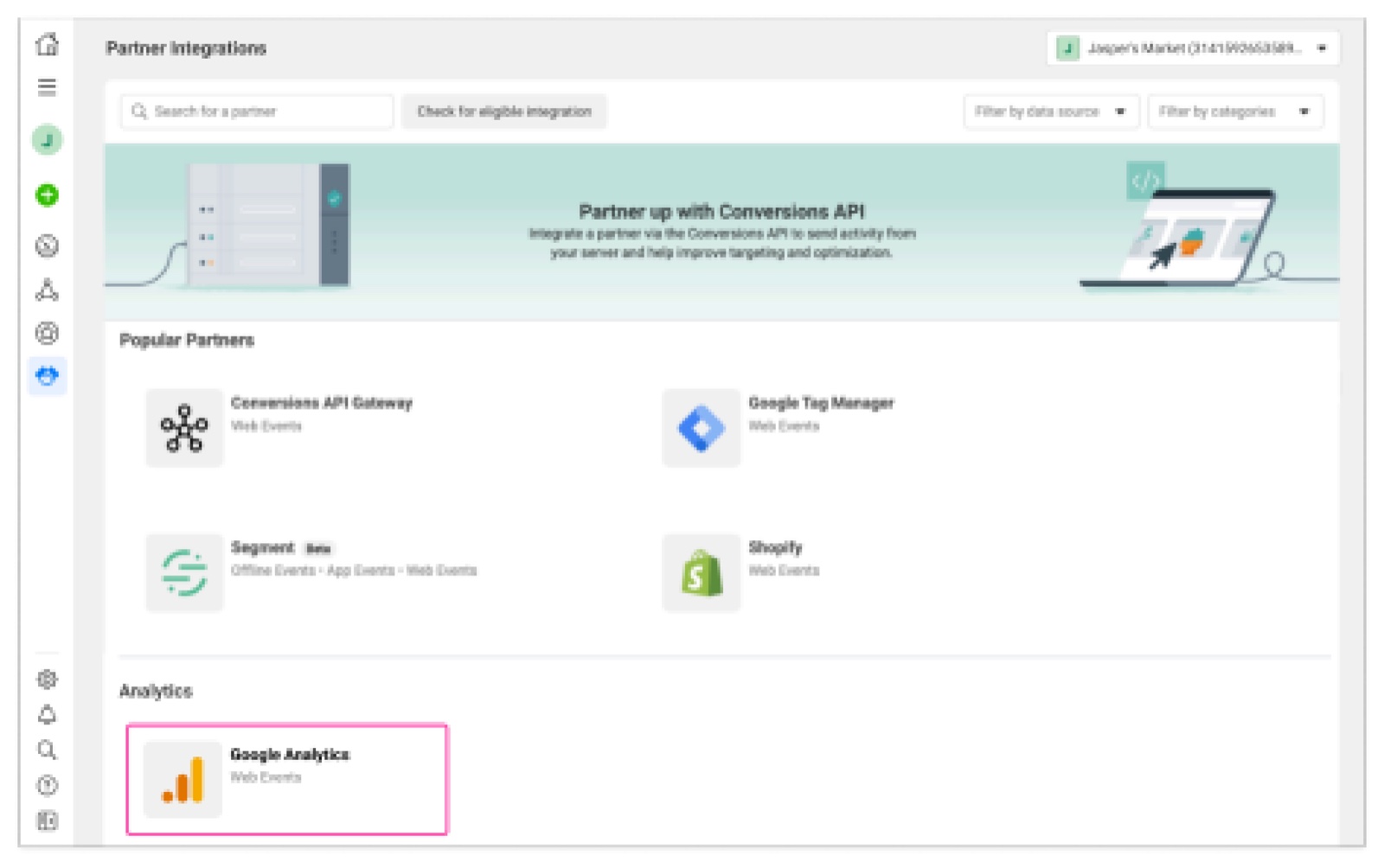 Step 1–2: Partner Integrations entry in Events Manager left rail and Google Analytics under Analytics
Step 3: Choose Portfolio / Ad Account Scope and Accept Terms
On the Connect Google Analytics to Meta -> Getting started screen, make a key scoping decision:
- Link the entire Business Portfolio (recommended for multi-account setups): Check
Apply connection to all Meta ad accounts within [your Business Portfolio name]; - Link a single Ad Account only (for isolated brands or regions): Leave that checkbox unchecked;
- Review Terms at the bottom and accept to proceed.
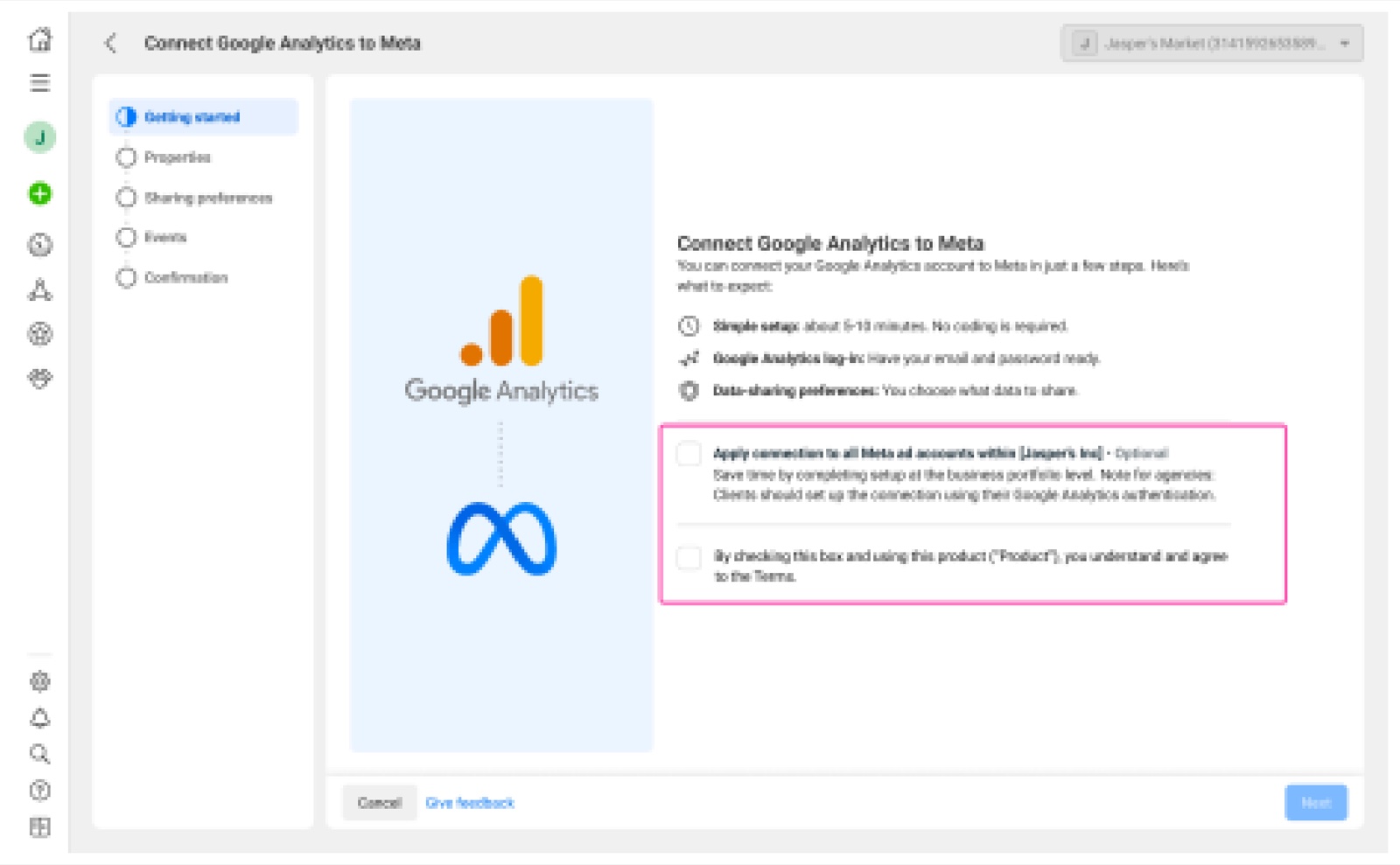 Step 3: Getting started screen showing Business Portfolio toggle and Terms acceptance
Step 4: Redirect Briefly to Google OAuth to Authorize Access
Clicking next opens a brief Google login screen (Sign in with Google to continue to Meta GA Integration). Sign in with the Google account holding GA4 Viewer or higher access and grant read-only permissions.
- Critical Agency Reminder: If you are an agency, hand screen control back to the client at this step so they sign in using their own Google Analytics credentials.
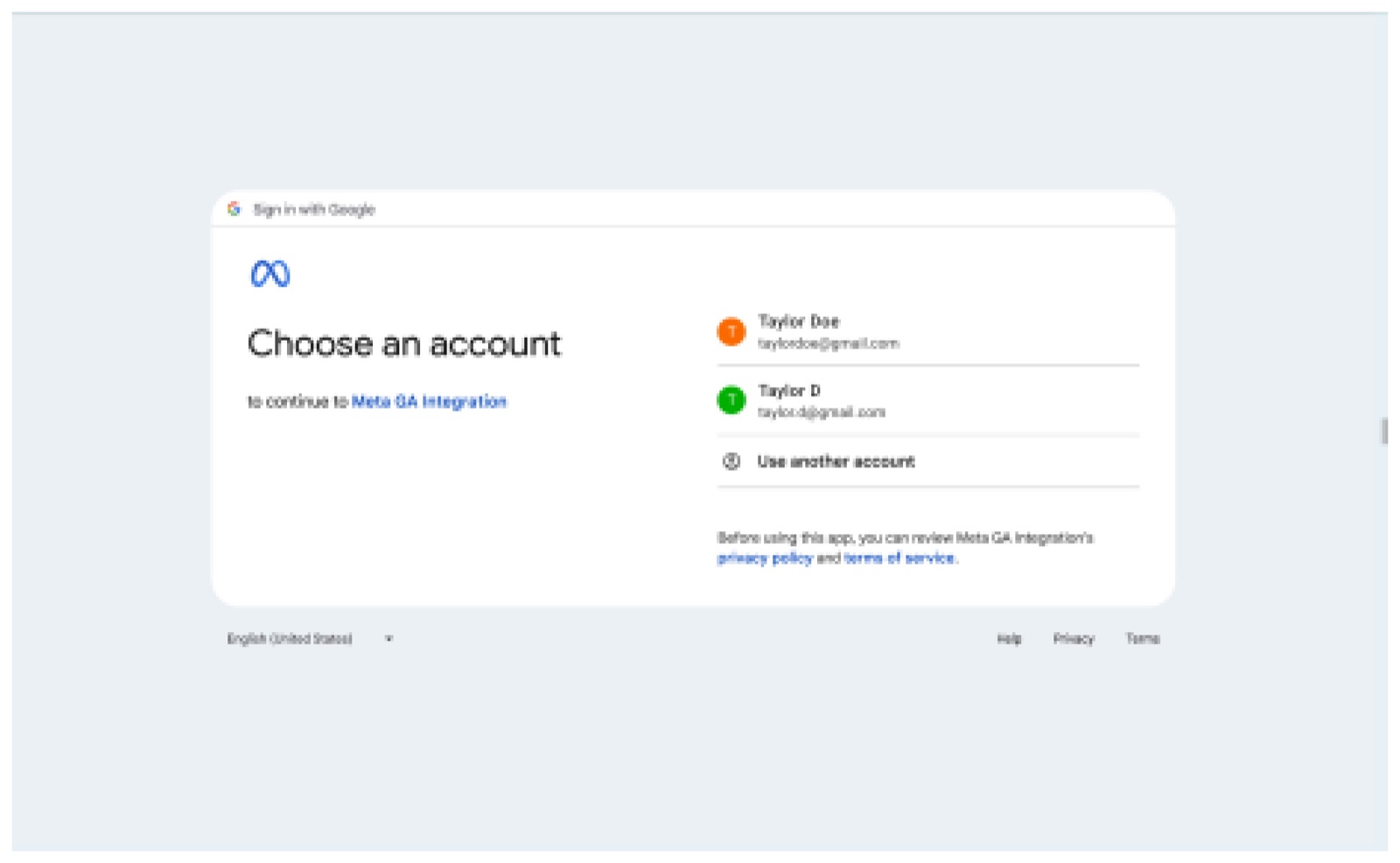 Step 4: Google OAuth consent screen (Sign in with Google to continue to Meta GA Integration)
Step 5: Return to Events Manager and Select Your GA Accounts and GA4 Properties
Once authorized, you return automatically to the Properties step in Events Manager: select the corresponding Google Analytics Accounts and specific GA4 Properties.
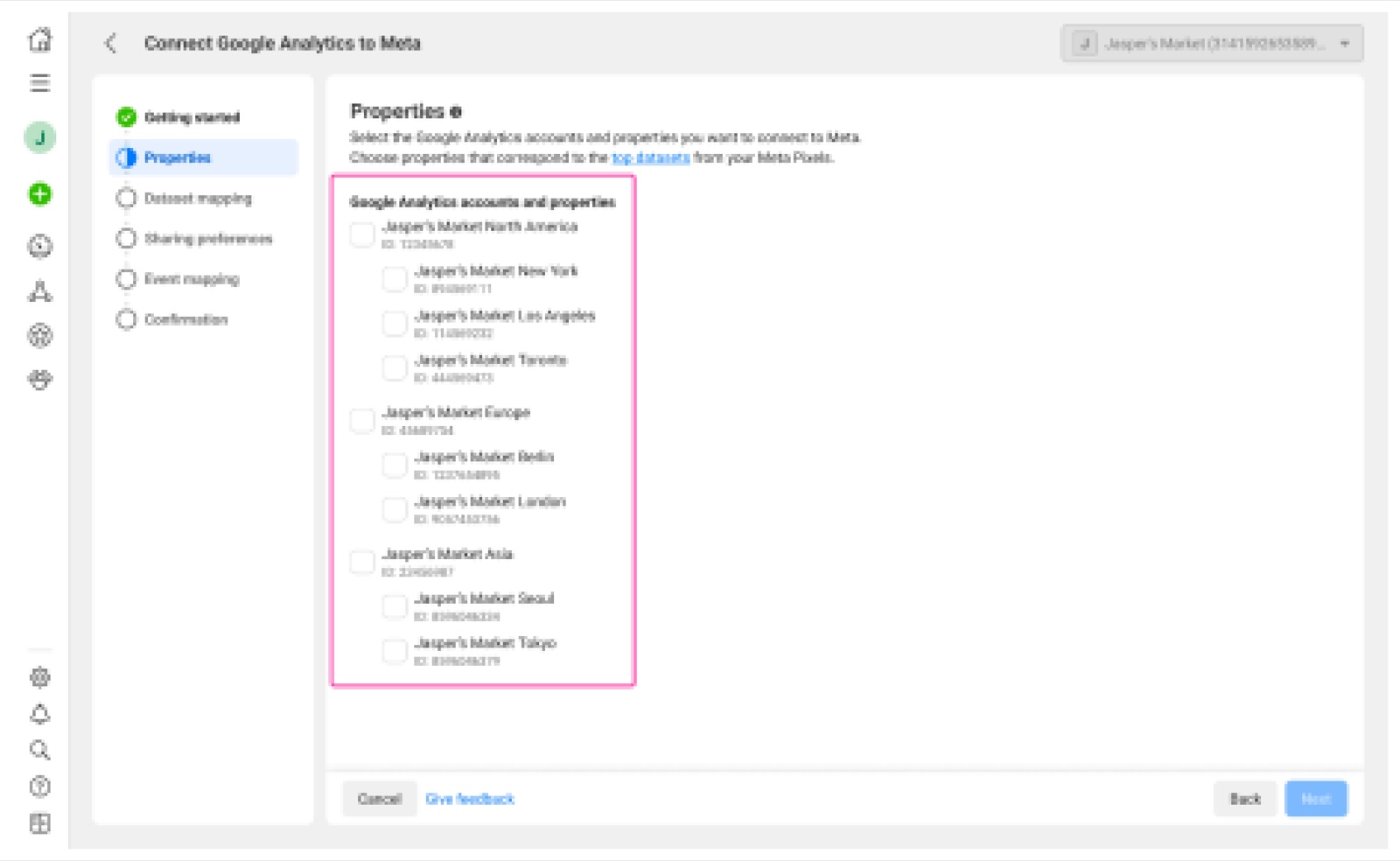 Step 5: Events Manager Properties screen selecting GA Accounts and GA4 Properties
- Official Tip: If you are unsure which storefront maps to which dataset on this page, hover over the
top datasetslink in the helper copy to preview active high-volume datasets from your existing Meta Pixels.
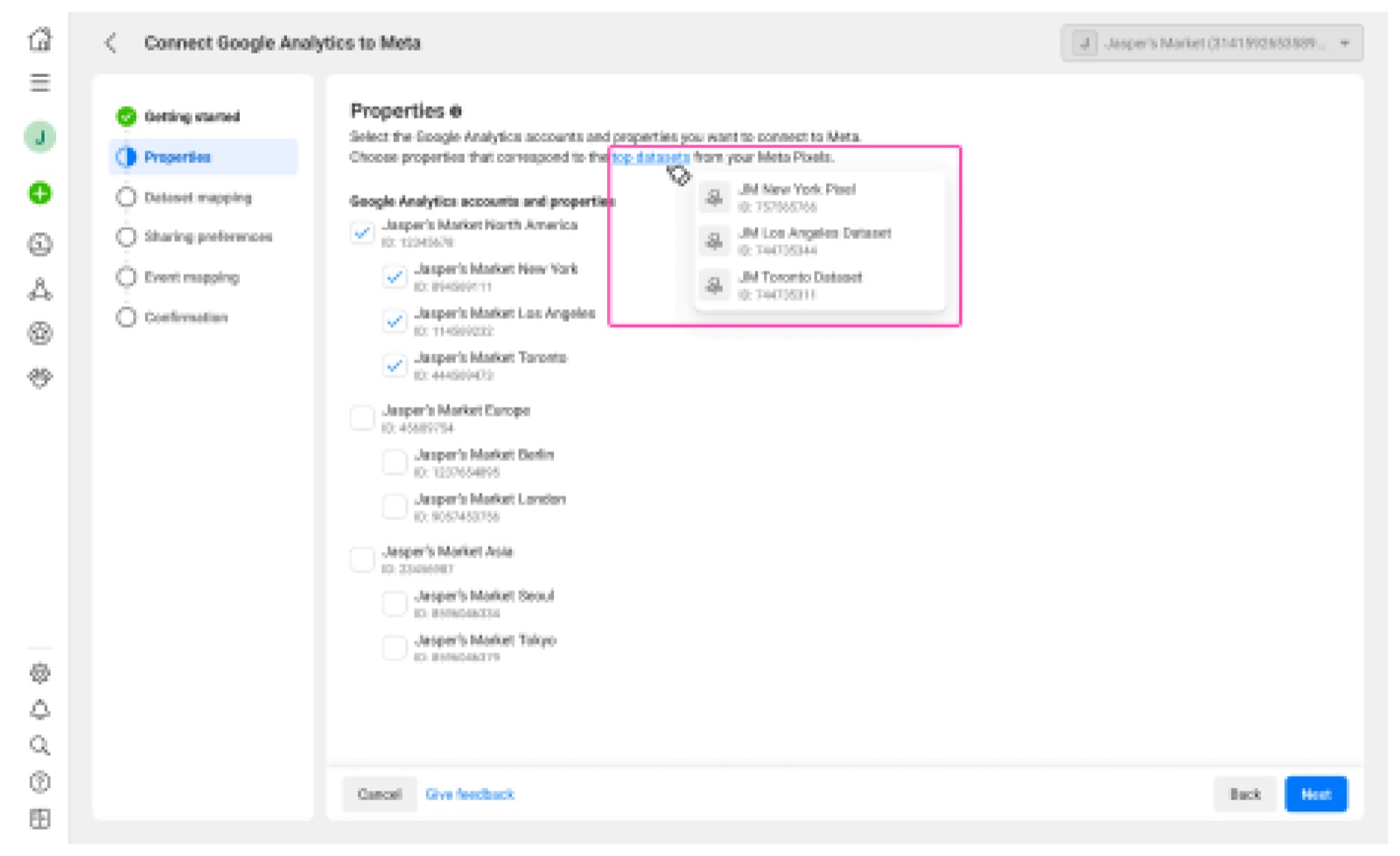 Step 5 Tip: Hovering top datasets to preview active Meta Pixel datasets
Step 6: Dataset mapping (Assign a Meta Dataset to Each GA4 Property)
Proceed to Dataset mapping and pair each selected GA4 Property with its matching Meta Dataset (typically your storefront's Meta Pixel), ensuring production, staging, and regional storefronts never cross-wire Dataset IDs.
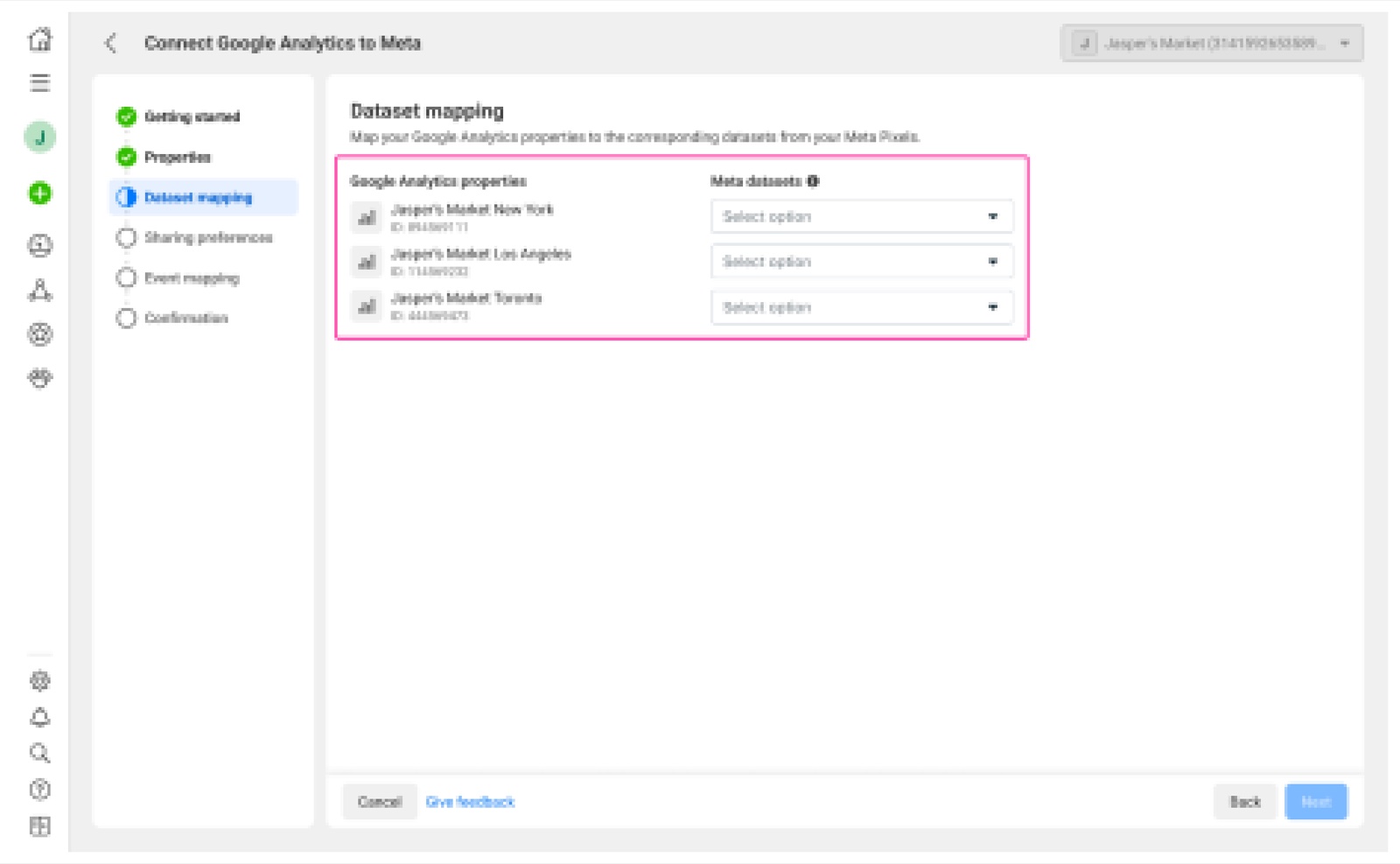 Step 6: Dataset mapping screen binding each GA4 property to its Meta Dataset
Step 7: Configure Sharing preferences (Choose One of Two Data Sharing Scopes)
In Sharing preferences, choose how much read-only conversion data to share with Meta from two options:
All traffic sources: Shares key conversion events from all GA4 traffic sources (including search, organic, and email) to give Meta's delivery engine fuller sitewide conversion context;Only traffic coming from Meta: Shares only conversions from sessions identified as originating from Meta ads. Meta explicitly notes that selectingOnly traffic coming from Metais completely sufficient—no other traffic sources are necessary.
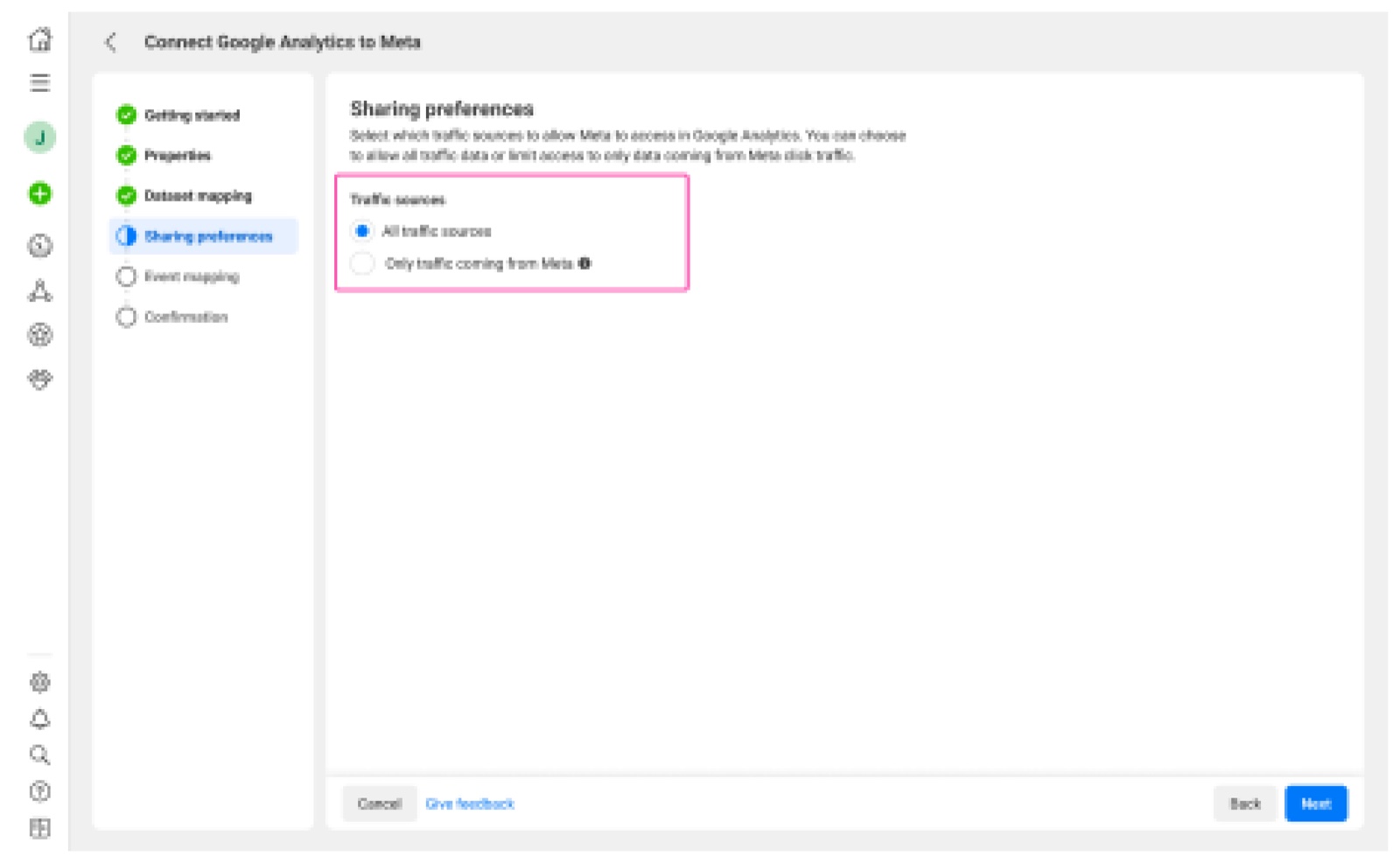 Step 7: Sharing preferences mode selector (All traffic sources vs. Only traffic coming from Meta)
Step 8: Event mapping (Complementary Deduplication Without Double-Counting)
On the critical Event mapping screen, Meta automatically matches most standard conversion events with GA4 Key Events (such as Purchase → Purchase, Initiate Checkout → Initiate checkout, and Add to Cart → Add to cart).
- For unmatched custom or lowercase event names (such as
viewCartorpurchaseshown underEvents partially mapped), use the right-hand dropdown to map the corresponding GA4 event until every dataset group displays greenAll events mapped. - Core Guarantee: Meta states that accurate event mapping improves integration quality and prioritizes access to ad-system improvements—and mapping will not overwrite events or count them more than once.
- Two Official Tips:
- Keep mapping to 1 GA4 event type per 1 Meta event type whenever possible (exceptions apply for deeper-funnel events such as
Purchases); - Double-check even auto-mapped rows to confirm the selected GA4 event name in the dropdown is exact.
- Keep mapping to 1 GA4 event type per 1 Meta event type whenever possible (exceptions apply for deeper-funnel events such as
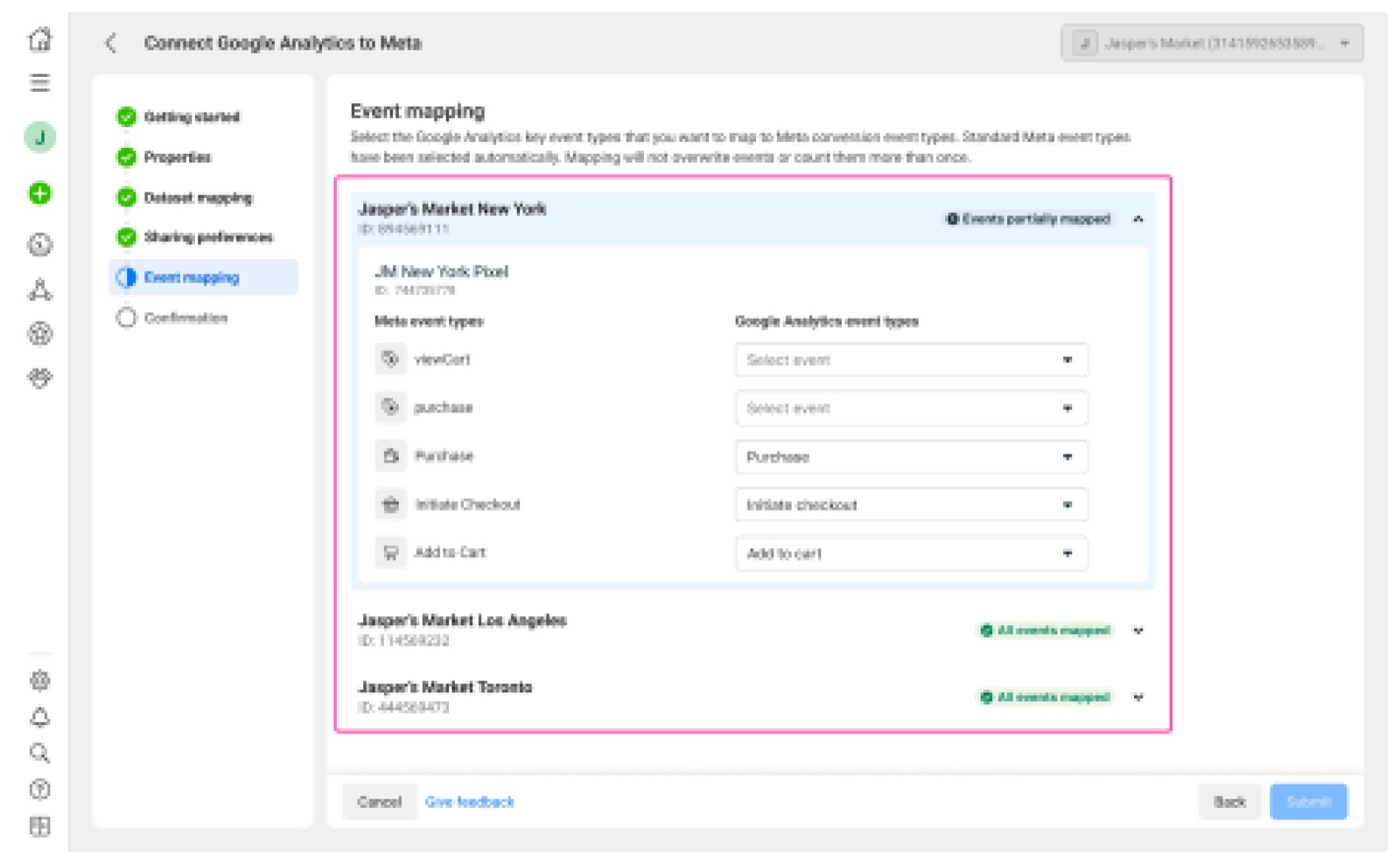 Step 8: Event mapping screen resolving Events partially mapped until All events mapped
Step 9: Click Done to Submit and Confirm Setup complete!
Once verified, click the blue submit button at the bottom right. When the green checkmark modal Setup complete! appears, click Done.
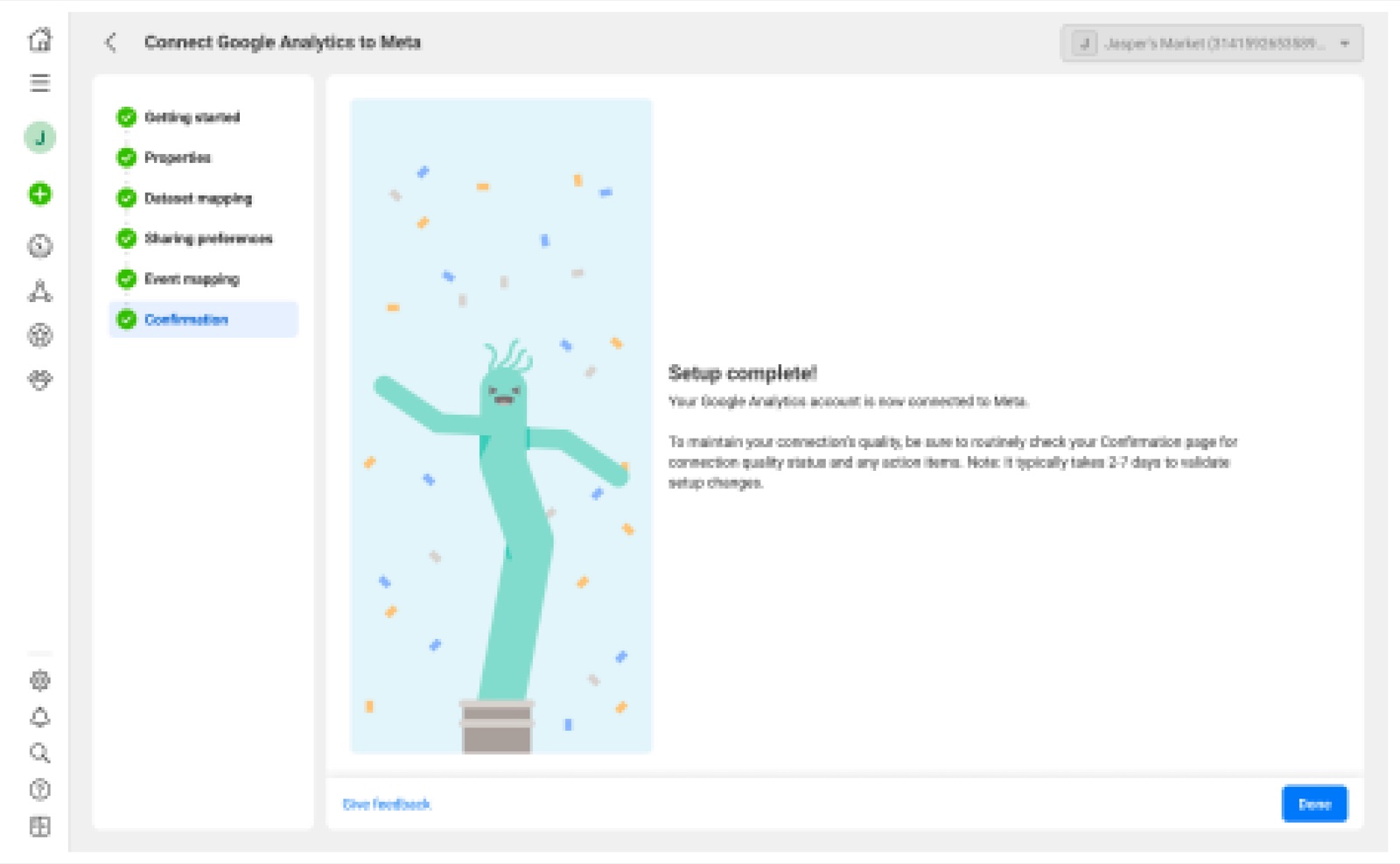 Step 9: Setup complete confirmation modal after submitting the wizard
Step 10: Verify Connection Health and Quality Rating on the Confirmation Page
You will land on the Confirmation overview page, where four health indicators should confirm success:
- Top-level status displays green
Connected; - Each GA4 Property reads
Activewith a freshData last receivedtimestamp; Connection qualityon the right readsHigh;- A
Settingsbutton sits in the top-right corner for future edits.
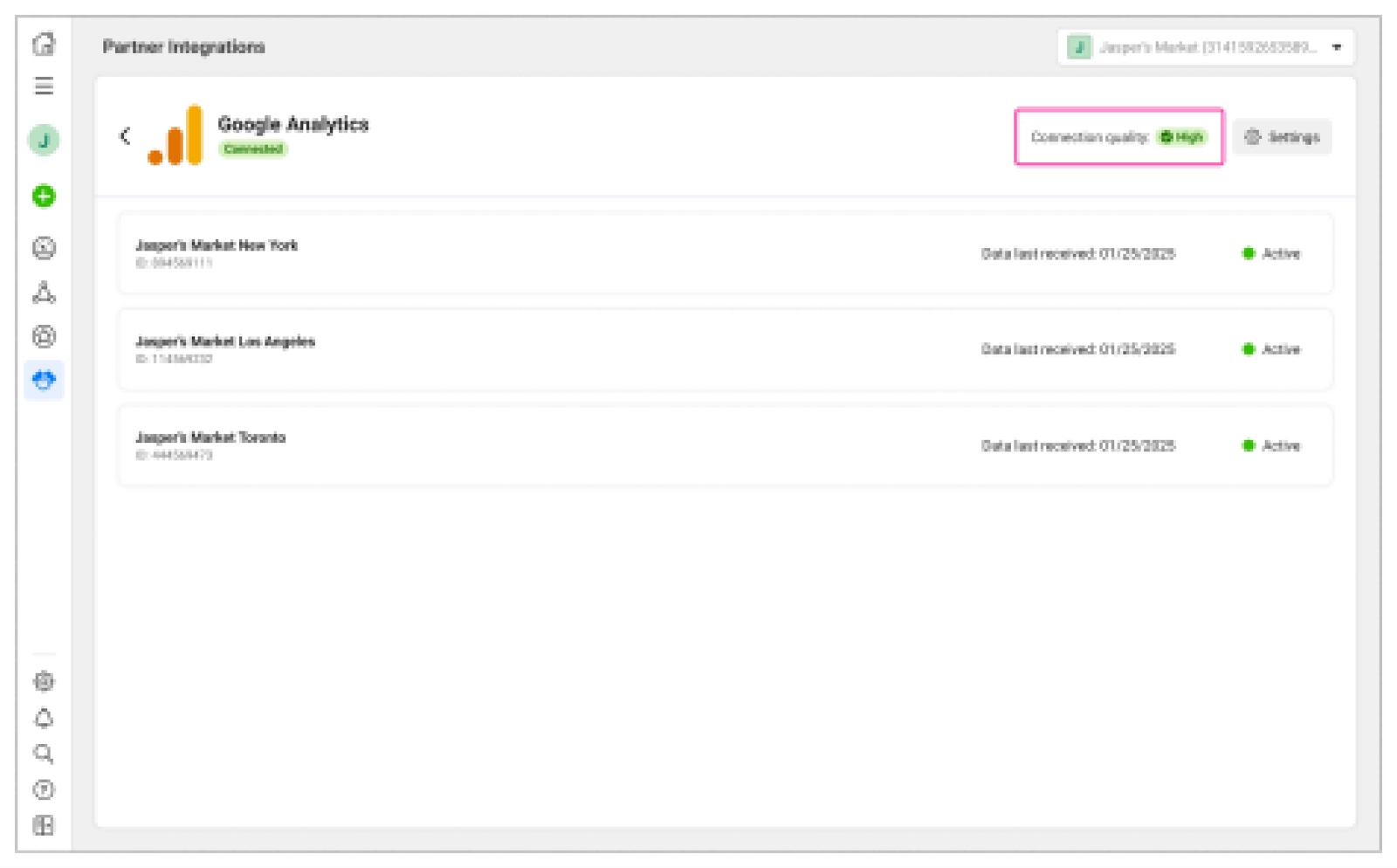 Step 10: Confirmation page showing Connected, Active, Data last received, and Connection quality High
3. Interactive Sandbox: 10-Step Wizard Walkthrough & Low Quality Troubleshooting Desk
Switch interactively between the 10-Step Setup Walkthrough (including Step 7 sharing modes and Step 8 partial event mapping) and Connection quality: Low 4-Scenario Diagnostics below:
4. Post-Connection Quality Maintenance & Full Troubleshooting Paths (Diagnostics & Edit Flow)
After onboarding, adding new GA4 events, changing site redirects, or modifying storefront Pixels can cause connection quality to regress.
Official Validation SLA: After initial setup or submitting any diagnostic edit, Meta requires 2–7 days to validate the data stream (up to 14 days in rare cases). Avoid repeatedly disconnecting and rebuilding the integration within hours of making an edit.
Step 1: Spot Potential Diagnostic Warnings from Two Entry Points
- On Events Manager Overview: Watch the Errors / Recommendations card on the right (for example, a blue alert stating
Review mapping for 2 eventswith aReviewlink, often paired beside theGet more accurate conversion data for your Meta ads/~13% lower cost per resultcard); - On the Google Analytics Confirmation Page: If
Connection qualityturns amber/redLow, hover over theLowbadge to inspect the specific warning popover.
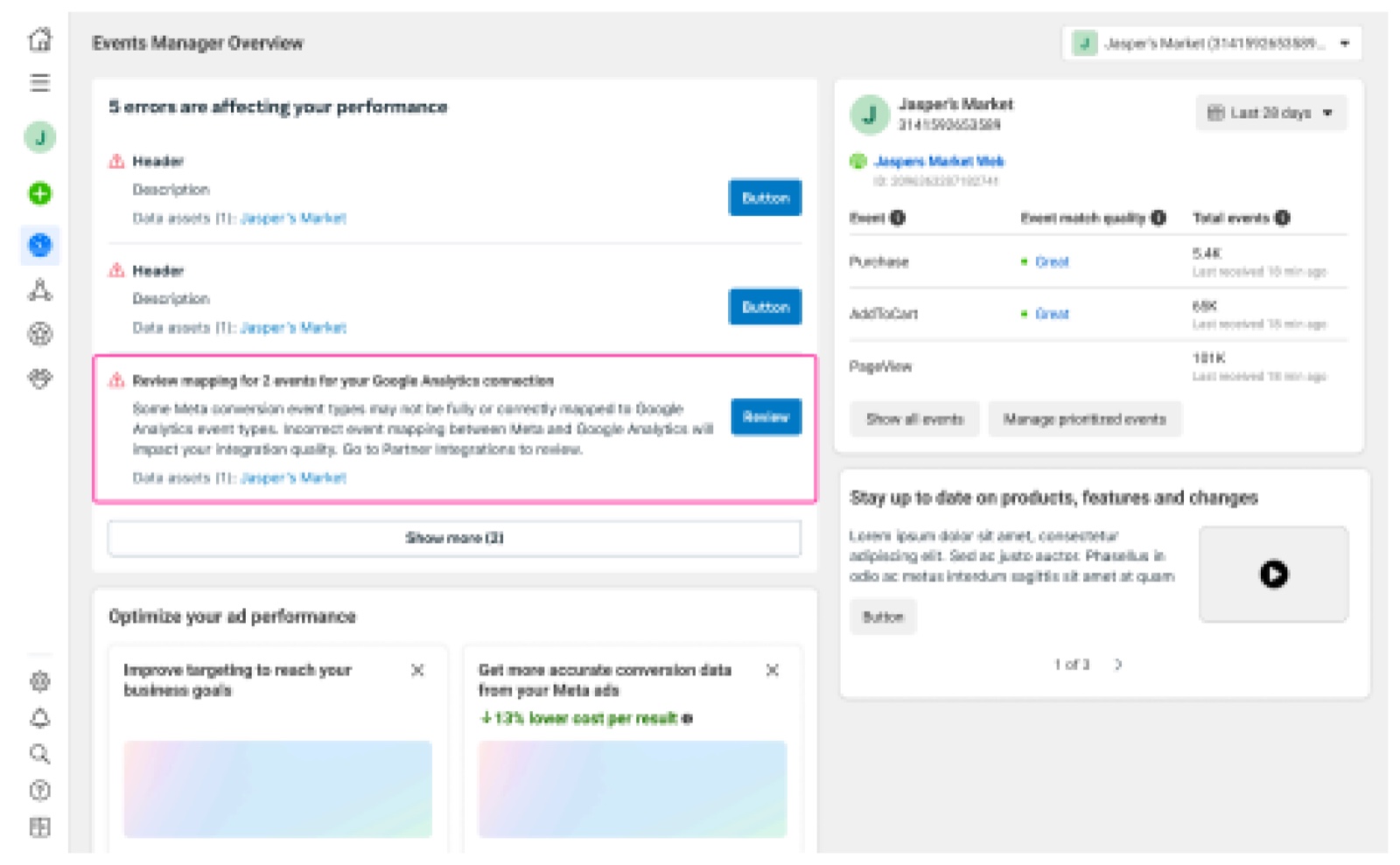 Diagnostics Step 1-A: Events Manager Overview alert card, Review entry, and ~13% lower cost benchmark
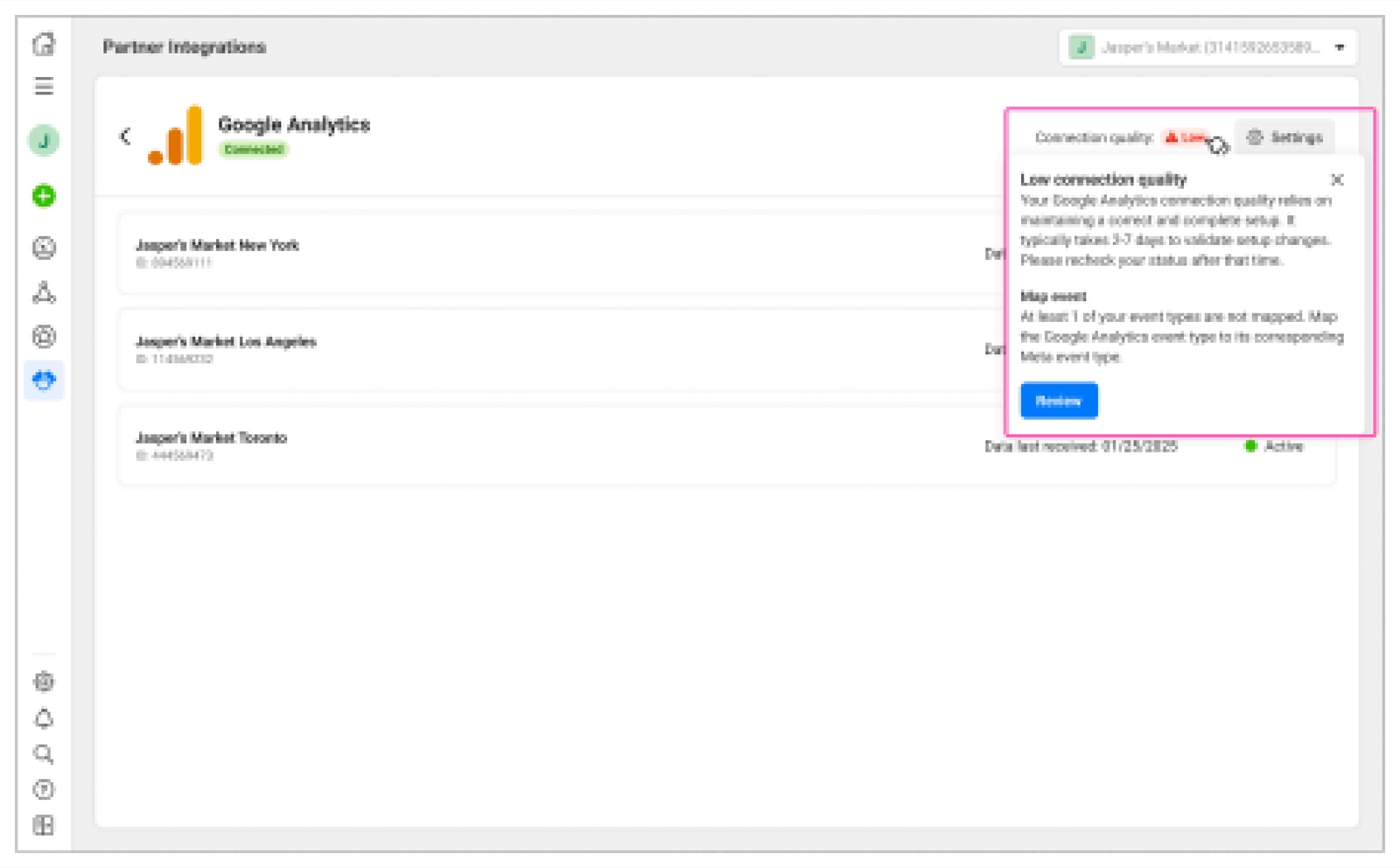 Diagnostics Step 1-B: Hovering Connection quality Low on the Confirmation page to view the warning popover
Step 2: Route to the Right Edit Flow Across 4 Official Error Categories
Click Review on the Errors card (or top-right Settings -> Edit) to enter the Guided Edit Flow:
- Missing or warned events: Locate rows displaying an unmapped
Select eventdropdown or red/amber warning icon (such asEvent_testin Meta's reference guide), choose the matching GA4 Key Event, confirm all groups show green mapped status, and clickSubmit. - Property-to-dataset issues: Open the Dataset mapping tab inside the wizard to add missing Meta Datasets → click
Next→ verify Event mapping → clickSubmit. - Inactive / incorrect properties: Return to the Properties step in the wizard and select the active GA4 Property generating live Key Events, then save.
- URL parameter issues: These cannot be fixed inside Events Manager. Go directly to Meta Ads Manager and check ad-level URL Dynamic Parameters and landing-page redirects to ensure tracking parameters are not stripped.
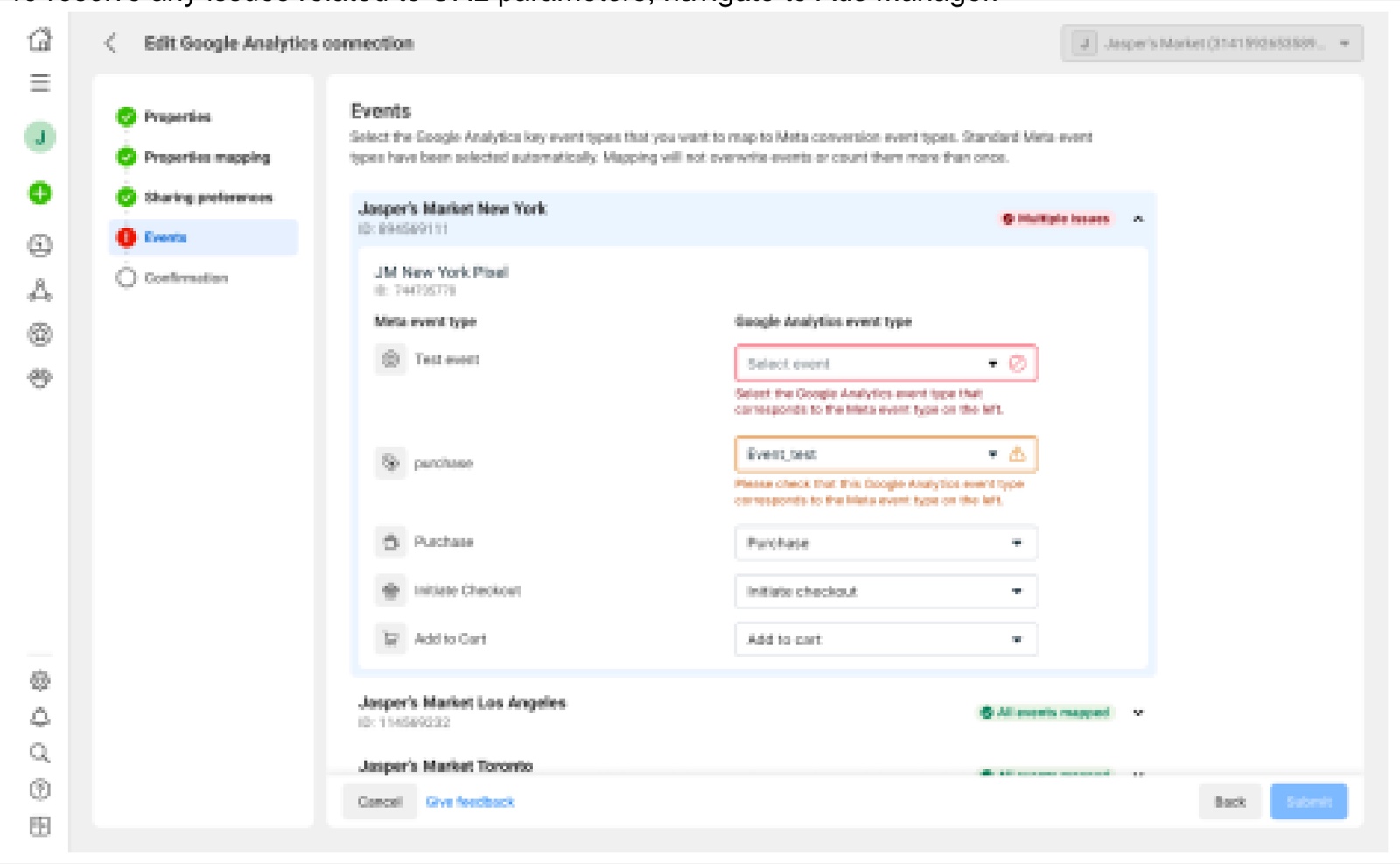 Diagnostics Step 2: Resolving Select event and Event_test warnings in Edit Flow before clicking Submit
Step 3: Submit Fixes and Wait for the Setup complete! Modal
Once edits are submitted, the Setup complete! checkmark modal confirms your update. Allow 2–7 days (up to 14 days) for quality status to recalculate back to High.
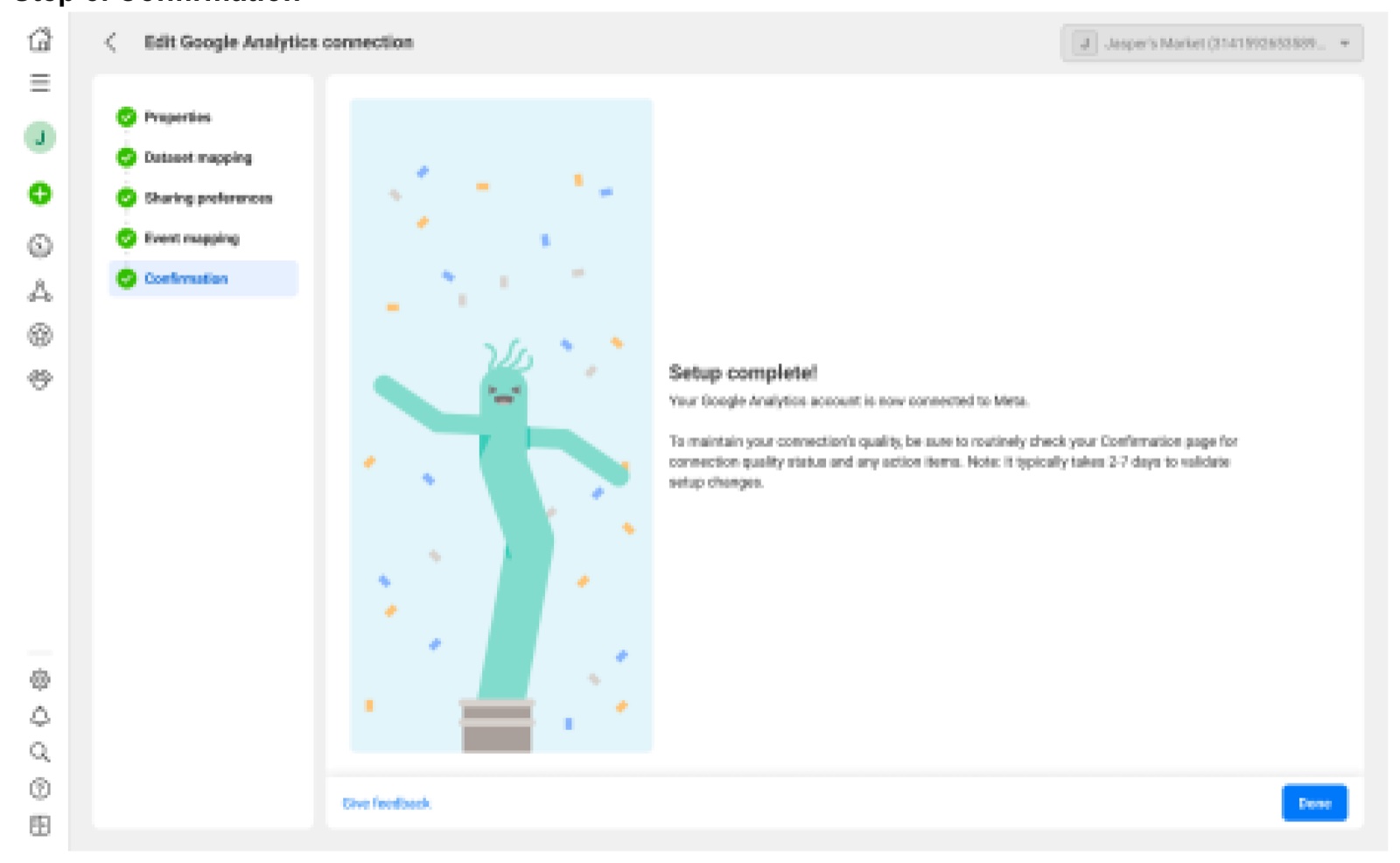 Diagnostics Step 3: Setup complete confirmation modal after saving diagnostic edits
5. How to Edit Settings, Switch Google Logins, or Disconnect Later (Settings Guide)
Whenever you need to add a GA4 Property, change traffic-sharing scope, update event mappings, or switch the authorized Google email account after a team handoff, follow these steps:
- In Events Manager, open
Partner Integrationson the left and click your connectedGoogle Analyticscard; - Click
Settingsin the top-right corner of the integration details screen:- Choose
Edit: Opens the step-by-step wizard without breaking the live connection so you can update Portfolio scope, GA properties, datasets, sharing preferences, or event mappings and clickSubmit; - Choose
Disconnect: Immediately severs the current integration. If you need to change the linked Google login email, Meta requires you toDisconnectfirst and then re-authorize using the target Google Analytics credentials.
- Choose
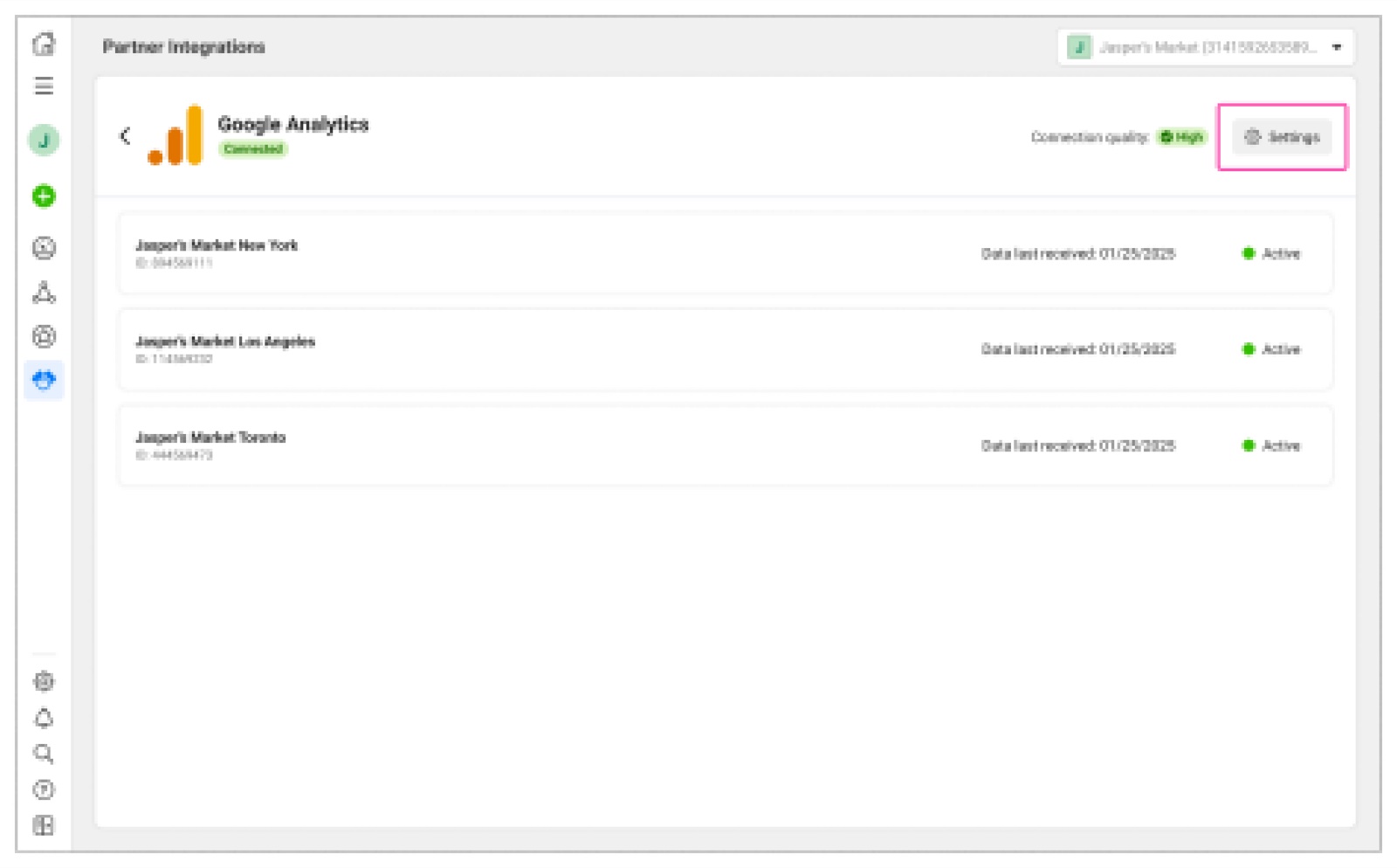 Settings Entry: Top-right Settings menu inside Partner Integrations -> Google Analytics (Edit / Disconnect)
6. All 9 Official Meta FAQs
Below is the complete set of Q&As from Page 11 (Frequently Asked Questions) of Meta's official onboarding guide:
Q1: How long does the full setup take? Do we need engineers?
Roughly 5–10 minutes with zero developer resources. The entire flow runs through a self-serve wizard; you only need Meta Business Manager Admin-level (Full control) access and Google Analytics Viewer or higher credentials.
Q2: If an agency manages our ad accounts day to day, who should perform the setup?
Even when an agency handles media buying strategy, Meta explicitly requires clients to set up the connection using their own Google Analytics authentication. Agencies must never connect a client's GA4 property using an agency personal or corporate Gmail login.
Q3: Do I still need to manually configure UTM or URL parameters in my Meta campaigns?
If your ads or site already pass Google Analytics-compatible URL parameters, extra setup is usually unnecessary. Additionally, Meta supports flexible URL dynamic parameters and now automatically appends utm_id mapped to your Campaign ID to aid accurate attribution. Review Meta's dynamic parameter documentation (Facebook Business Help #1016122818401732) or use our free Meta Dynamic Macro UTM Builder to generate error-free parameter templates.
Q4: If a single Business Manager holds multiple ad accounts, can they all benefit?
Yes. In Step 3 (Getting started), checking the Business Portfolio toggle (Apply connection to all Meta ad accounts) extends the integration across every ad account inside that Business Portfolio—or leave it unchecked for granular per-account isolation.
Q5: Can one Business Manager with multiple storefronts (multiple GA4 Properties) connect them all at once?
Yes. In Step 5 (Properties) and Step 6 (Dataset mapping), you can select multiple GA4 Properties under the same Google account and bind each one to its corresponding storefront or regional Meta Dataset.
Q6: I am still using legacy Google Universal Analytics (UA). Is direct integration supported?
No. The GA Partner Integration supports Google Analytics 4 (GA4) properties only.
Q7: I already use Meta Pixel and Conversions API (CAPI). Will connecting GA4 double-count conversions?
No. The GA4 Partner Integration is specifically engineered to complement and strengthen your existing Meta Pixel and CAPI setup. Meta deduplicates and reconciles events internally (Page 6 explicitly confirms: Mapping will not overwrite events or count them more than once), preventing inflated conversion counts.
Q8: Once enabled, can I view GA4 columns directly in Ads Manager reporting or use it for A/B tests?
- Ads Manager reporting: Cannot currently be viewed in Ads Manager reporting—the GA4 signal feeds Meta's delivery and bidding optimization engine to lower CPA (reflected in the
~13% lower cost per resultbenchmark), rather than adding GA columns inside Ads Manager; - A/B testing: Cannot currently be used in A/B testing or A/B test reporting at this time.
Q9: How does the Meta integration handle different GA4 attribution models, and how do I switch Google accounts?
- Attribution models: The integration respects whichever attribution model is currently configured in your GA4 property—whether Data Driven Attribution (DDA) or Last Click;
- Switching logins or editing events: Go to Events Manager → Partner Integrations → Google Analytics → top-right
Settings: clickEditto adjust events or sharing preferences, or clickDisconnectfirst and reconnect with your new Google account to switch logins.
Recommended Next Tool: Generate Standard Meta utm_id and Dynamic Tracking Links in 30 Seconds
To maintain Connection quality: High after connecting GA4 and prevent "URL Parameter Issues" diagnostics, standardize utm_source, utm_medium, utm_campaign, and utm_id={{campaign.id}} before launching new campaigns using Evaoo's free Meta Dynamic Macro UTM Builder.
Found this actionable? Copy standard citation & summary
Formatted with canonical attribution link and executive summary—ready for Slack, Notion, or LLM context.
Put Into Practice: Companion Browser Workbenches
UTM Builder Pro Matrix Workspace
Reverse URL parser, GA4 channel group diagnostics, and dynamic ad macro batch CSV export.
Shopify GTM & GA4 Web Pixel Generator
Generate production-ready Shopify Customer Events Web Pixel code for GA4, Meta, and TikTok.